


-
Moves objects to a specified elevation along the Z axis
Launch Options
- ModPlus floating menu or palette
- AutoCAD ribbon
- Command line: _mpSetHeight
Icon


Related News and Articles
Using
After starting the command, you can open its settings by selecting Settings in the command line.
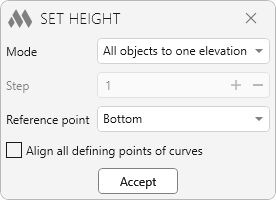
The following options are available in the settings window:
Mode – determines how elevations are assigned to objects:
- All objects to one elevation – moves the selected objects to a single specified elevation along the Z-axis. After specifying the elevation, select the objects to be processed
- Along a fence with a step – assigns successive elevations to objects at the specified step along a defined direction. After specifying the elevation, indicate the first and second points of the selection fence in sequence.
Step – specifies the height difference between consecutive objects. This setting is available in the Along a fence with a step mode.
Reference point – determines which point of the object's bounding box will be aligned with the specified elevation:
- Bottom – the lowest point of the object
- Middle – the midpoint of the object's height
- Top – the highest point of the object.
Align all defining points of curves – aligns the defining points of curves to the same elevation when processing them.
Accept – saves the selected settings and returns to command execution.
In the All objects to one elevation mode, after starting the plugin, complete the following command-line prompts:
Specify elevation – specify the elevation along the Z-axis. The Settings option is also available in the command line to open the command settings window.
Select objects – select the objects to which the specified elevation will be assigned. The plugin also processes preselected objects.
In the Along a fence with a step mode, after starting the plugin, complete the following command-line prompts:
Specify elevation – specify the starting elevation along the Z-axis. The Settings option is also available in the command line to open the command settings window.
Specify first point of selection fence – specify the first point of the selection fence.
Specify second point of selection fence – specify the second point of the selection fence, which determines the direction in which objects are processed.
-
-
Change history forYear
2026 Year
AutoCAD: Set height 1.0.0.0 (27.10.2026) Read more
ReleaseRelease. -