Launch options
Icon
Related news and articles
Using
The plugin is available for Renga version 9.0 and later.
The main plugin window consists of three main parts: working with user notes, working with standard notes, and settings.
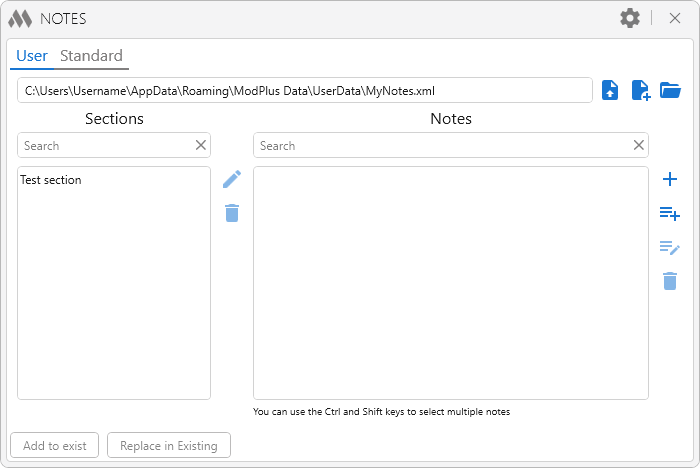
When working with user notes, a notes file must be specified. At the top of the window is a field displaying the current notes file. To the right of the field are buttons for working with the user notes file:
 – export the current notes file
 – create a new user notes file
 – open an existing notes file.
All notes are organized into sections. The list of sections is located on the left side of the window, and the list of notes for the selected section is located on the right. A search box is located above each list. Controls for the corresponding list are located to the right.
The section controls include:
 – rename the selected section.
 – delete the selected section. Deleting a section also deletes all notes belonging to it.
The note controls include:
 – add a new note. A special window for adding a new note will open. This window is described below.
 – add a note from text. After selecting text in Renga, a special window for adding a new note will open. This window is described below.
 – edit the selected note. The button is active only when a note is selected in the list. A special window for editing the note will open. This window is described below.
– delete the selected note.
You can use the Ctrl and Shift keys to select multiple notes in the list.
When adding or editing a note, a special window opens:
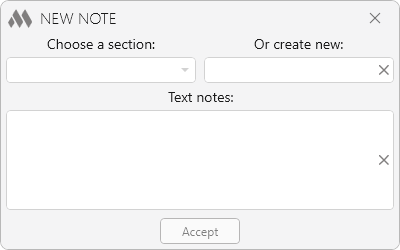
Choose a section – a drop-down list containing sections already added to the user notes file.
Or create new – a text field where you can specify the name of a new section. If an existing section is selected and a new section name is specified at the same time, a new section will be created.
Text notes – a text field containing the text of the new or edited note.
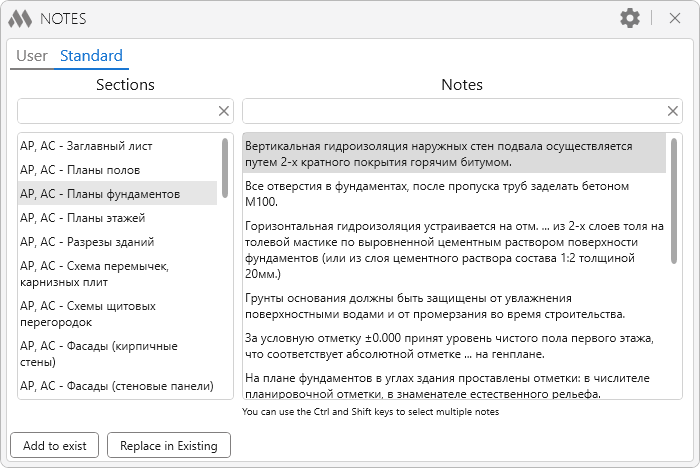
Working with standard notes is similar to working with user notes, except that sections and notes cannot be added to, edited in, or deleted from the database.
The lower part of the plugin window contains controls for working with the selected note:
Add to exist – the selected note will be added to the preselected existing text.
Replace in Existing – the contents of the preselected text will be replaced with the note text.
.png) – opens/closes the flyout panel with settings.
– opens/closes the flyout panel with settings.
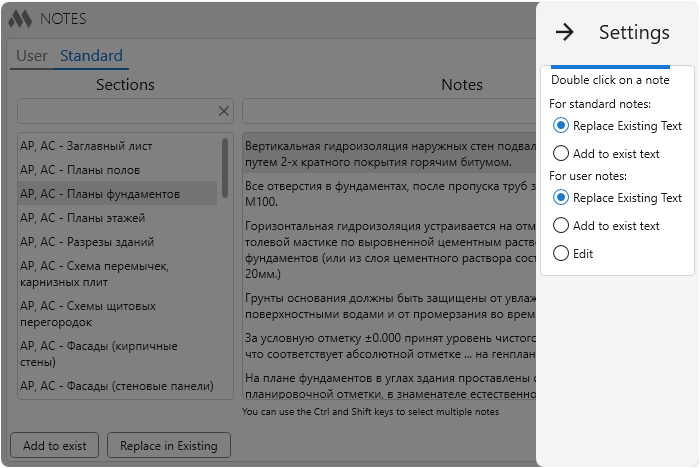
Double click on a note – specifies the action performed when a note in the list is double-clicked with the left mouse button.
For standard notes, the following actions are available:
- Replace Existing Text – the contents of the preselected text will be replaced with the note text
- Add to exist text – the selected note will be added to the preselected existing text.
For user notes, the following actions are available:
- Replace Existing Text – the contents of the preselected text will be replaced with the note text
- Add to exist text – the selected note will be added to the preselected existing text
- Edit – opens the window for editing the selected note


