


-
Batch renaming of parameter names, type names, parameter values in the specified families
Icon


Related news and articles
Using
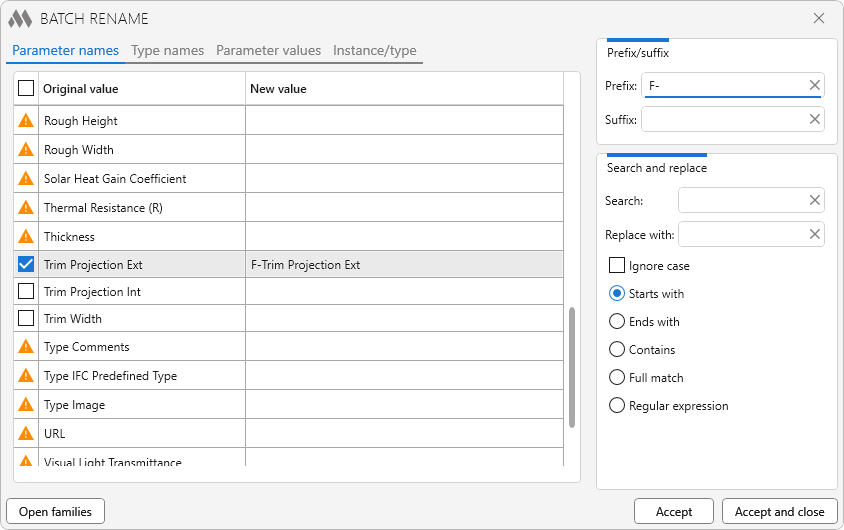
To start working with the plugin, open families using the Open families button in the lower left corner of the window.
When you open family files, you will be offered three options: select files with an extension .rfa, select a folder and open all the files in the folder with the extension .rfa or select a folder and open all files with the extension .rfa, including all files in all attached files.
After selecting the files, they will open and read the data - parameter names, type names, parameter values and property "Parameter of type/instance". The read data will be grouped by the uniqueness of the value. That is, if two families have two parameters with the same name, the table will display this parameter only once.
Next, select the data processing option by clicking on one of the tabs at the top of the plugin window:
- Parameter Names
- Type names
- Parameter values
- Instance/type.
The data in all columns can be sorted by left-clicking on the column header.
In the right part of the window, you can specify the options by which you want to change the values:
Prefix/suffix – in this group you can specify the prefix and/or suffix to be added.
Search and replace – in this group you can specify which value to find and which value to change. Additional search and replace options are also available in the group:
- Ignore case – case insensitive search for values
- Starts with – indicates that the value to be searched must be at the beginning of the value to be changed. For example, if you specify a rotation in the Search field, the Angle of rotation value will not be processed.
- Ends with – by analogy with the previous paragraph, only processes values that end with the desired value.
- Contains – handles any match.
- Full match – processing of values only when the full match with the desired value.
- Regular expression – indicates that the search value is specified as a formal search language (Regular expressions or Regex). For example, the desired value KZ\d+\.\d+? find matches in the value KZH15. 5_complete (find KZH15. 5) and KZH16. 1_complete (find KZH16. 1).
In the list of processed data, the result will be displayed immediately. Only items marked with a check mark are processed.
On the Instance/type tab, the property of the "Type Parameter" family parameter changes to "Instance Parameter" for the checked position and vice versa. The other buttons on the right side of the plugin window are inactive.
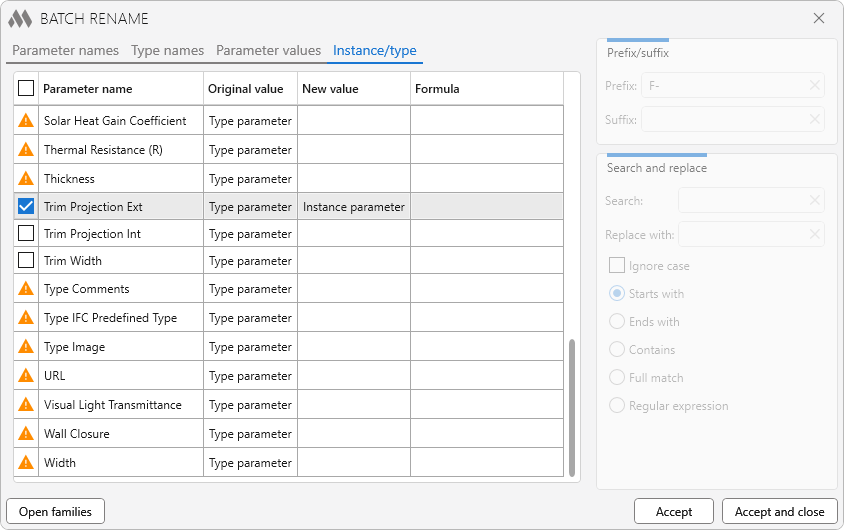
In the lower right part of the window there are buttons:
Apply – makes changes to the family files according to the specified options, saves the files and re-reads the data. Only items marked with a check mark are processed.
Apply and close – makes changes to the family files according to the specified options, saves the files and closes the plugin window. Only items marked with a check mark are processed.
It is strongly not recommended to apply the plugin to different data processing options. For example, renaming parameters and changing parameter values. Use the plugin to handle data in a single context – parameter names, type names, parameter values or property "Parameter of type/instance".
-
-
Change history forYear
2026 Year
Revit: Batch Rename 1.4.2.0 (24.09.2026)
ImprovedFixed some interface issues.Revit: Batch Rename 1.4.1.0 (18.09.2026)
ImprovedThe interface was migrated to the current version of the ModPlus styling library.2024 Year
Revit: Batch Rename 1.4.0.0 (11.09.2024)
NewAdded the ability to check (or uncheck) selected items in lists.Revit: Batch Rename 1.3.5.0 (03.04.2024)
ImprovedReplaced the folder selection dialog.Revit: Batch Rename 1.3.4.0 (14.01.2024)
FixCorrect behavior of the plugin window relative to the Revit window.2023 Year
Revit: Batch Rename 1.3.3.0 (10.11.2023)
ImprovedUsing the ModPlus.Xaml.Behaviors.Wpf.dll library instead of Microsoft.Xaml.Behaviors.dll to resolve compatibility issues with other plugins.Revit: Batch Rename 1.3.2.0 (05.01.2023)
ImprovedChanged icons.ImprovedAdded command access settings on the ribbon.2022 Year
Revit: Batch Rename 1.3.0.0 (08.09.2022)
NewAdded safe command calls that exclude closed Revit commands in case of unexpected errors.ImprovedChanged methods for reading numeric parameters in versions 2017-2020.Revit: Batch Rename 1.2.8.0 (03.09.2022)
FixFixed text replacement algorithm not working correctly when "Contains" option is on, if search string contains dot or other special Regex characters.2021 Year
Revit: Batch Rename 1.2.7.0 (01.12.2021)
ImprovedDo not process marked positions if old and new values are the same.ImprovedCorrect processing of numeric parameters.ImprovedProcessing parameters specified by a formula.Revit: Batch Rename 1.2.4.0 (25.11.2021)
NewReading all parameters and displaying the reasons if they cannot be changed.2020 Year
Revit: Batch Rename 1.1.4.0 (07.11.2020)
ImprovedService update.Revit: Batch Rename 1.1.3.0 (27.02.2020)
Added the ability to change parameters property "Parameter of type/instance".Fixed the wrong entering numerical parameters when change parameter values.Added sorting when the values are displayed in all lists.2019 Year
Revit: Batch Rename 1.0.1.0 (25.12.2019) Read more
Update related to replacement of support library.Revit: Batch Rename 1.0.0.0 (24.12.2019)
ReleaseRelease. -