


Revit. Save Notification, New Built-in Commands, and New Element Filter Capabilities
Today we released a major update of the working libraries for Revit, and in this article we will talk about what’s new.
Save Notification
When we added the synchronization notification service, we immediately received a request for a similar service, but for saving. However, the idea of coloring the Revit window title text had already been used. Therefore, it was decided to create the same service, but to color the title background instead of the title text:

Tab Wrapping
An option Each document on a new row has been added to the tab settings. It allows tabs related to another document to be moved to a new row:
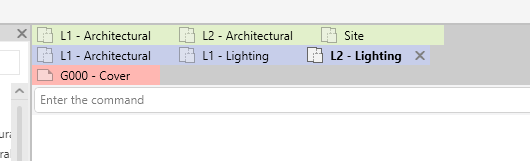
However, for this option to work, in addition to enabling Multi-row, you must also enable sorting by tooltip so that tabs related to the same document are placed next to each other.
Tab Coloring
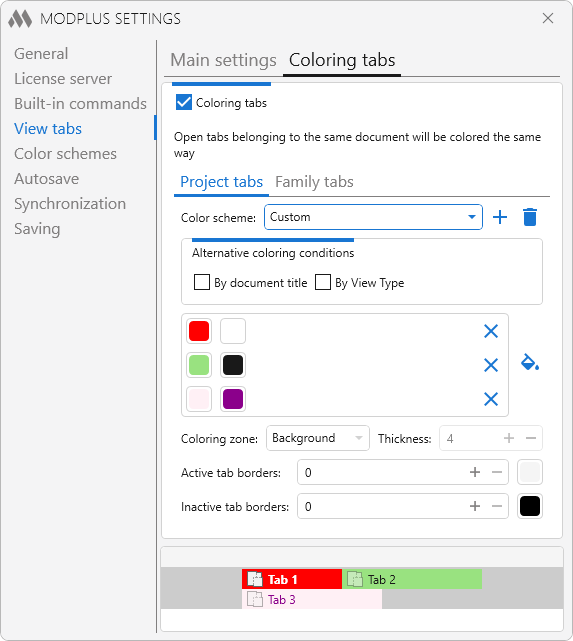
The tab coloring capabilities have been expanded. Specifically:
- the ability to define custom settings for family tabs has been added,
- the text color is now defined for each fill color,
- the ability to color the right border and all borders has been added.
The design has also been slightly updated, and color scheme settings are now always displayed as a list:
Built-in Commands
New built-in commands have been added:
- Select System – allows you to select the rebar system that the selected reinforcement belongs to
- Apply to View – allows you to assign the selected visibility/graphics override to the current view
The principle of storing settings has also been changed: previously enabled built-in commands were saved, but now disabled ones are saved. This ensures that new built-in commands are enabled by default. After updating the working libraries, it is recommended to check the built-in command settings.
Element Filter
In the Element Filter, all changes are related to filtering by parameters and to the parameter filter condition settings window:
- a Clear button has been added to the condition settings window,
- new key parameters have been added: InMEPSystem (checks that the element belongs to an MEP system), InRebarSystem (checks that the element belongs to a rebar system), DocumentTitle (processes the document title as a string parameter),
- the logic for checking key parameters Parent, Nested, Curtain, AreaScheme has been changed. For example, previously, if you specified the Parent parameter and the checked element was not a family, the filter returned true (considered the element suitable). Now the filter will return false. The corresponding changes have been added to the description of these conditional parameters in the documentation,
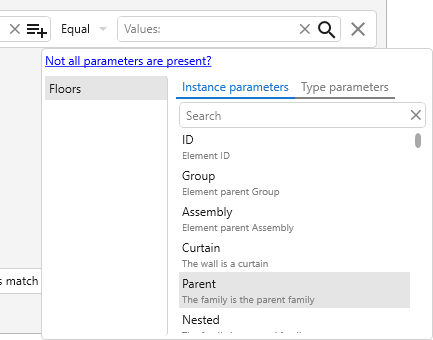
- the design of conditional parameters in the parameter list has been changed. They are now displayed without bold formatting and immediately with a short description:
- a new Read-only check condition has been added, allowing you to verify whether a parameter is available for editing:

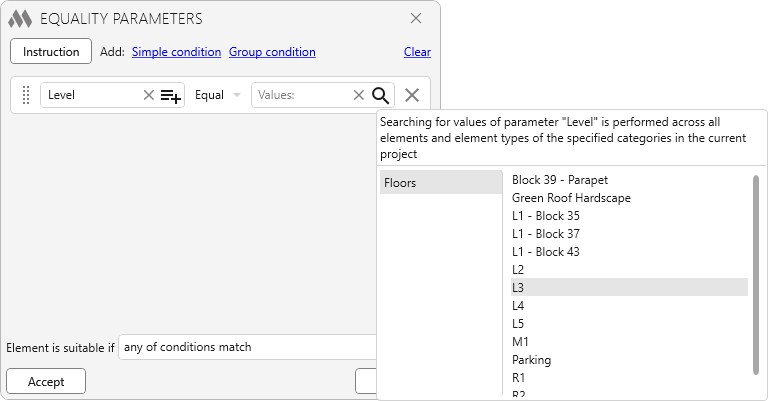
- a built-in control for searching parameter values has been added. For it to appear, categories must be selected (same condition as in the parameter selection control), a parameter identifier must be entered (in most cases this is the parameter name), and the check condition Equals or Not equals must be selected (for other conditions it would not be logical). When all conditions are met, the control becomes available. It collects all parameter values from all model elements and displays them as a list:
We wish you productive work with ModPlus!