Icon
Related news and articles
Using
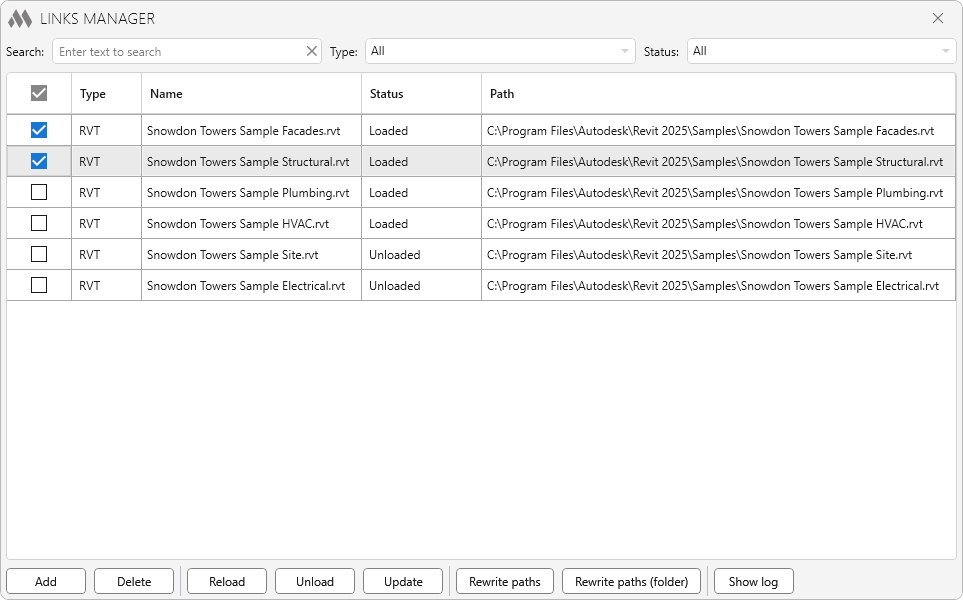
In the central part of the plugin window, a table of project links is displayed with the following columns:
- Type – type of linked file (for example, RVT)
- Name – name of the linked file
- Status – current status (loaded, unloaded, or not found)
- Type workset – the workset in which the link type is placed
- Instance workset – the workset of the link instances
- Path – path to the file on disk.
To perform operations, select one or more links using the checkboxes.
At the top of the window, tools are available for quick search and filtering of links:
Search – quick search in the table by link name or path.
Type – filtering by link type (All, RVT, DWG).
Status – filtering by current status (All, Loaded, Unloaded, Not found).
At the bottom of the window there are buttons for performing operations with the links checked in the table:
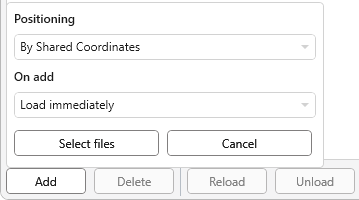
Add – adds a new link to the project. When the button is clicked, a window appears with a list of additional settings:
- Positioning – method of placing the link in the model (By Shared Coordinates, Origin to Origin, Center to Center).
- On add – loading mode when adding (Load immediately or Add unloaded).
- Place in workset – specifies the worksets for the Type and Instance of the added links.
- Disable worksets containing – this option allows automatically closing worksets of the linked model when it is loaded. One or more substrings separated by commas must be specified in the field. If the name of a workset in the linked model contains at least one of the specified substrings, such a workset will be closed. All other worksets will remain open.
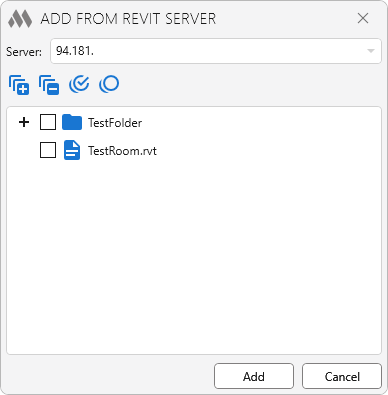
Files can be added from a folder on a local drive or loaded from Revit Server:
Delete – deletes the selected links from the project.
Reload – loads the selected links.
Unload – unloads the selected links from the model.
Update – updates the selected links (reloads them from file).
Rewrite paths – allows you to change the path to the selected linked files:
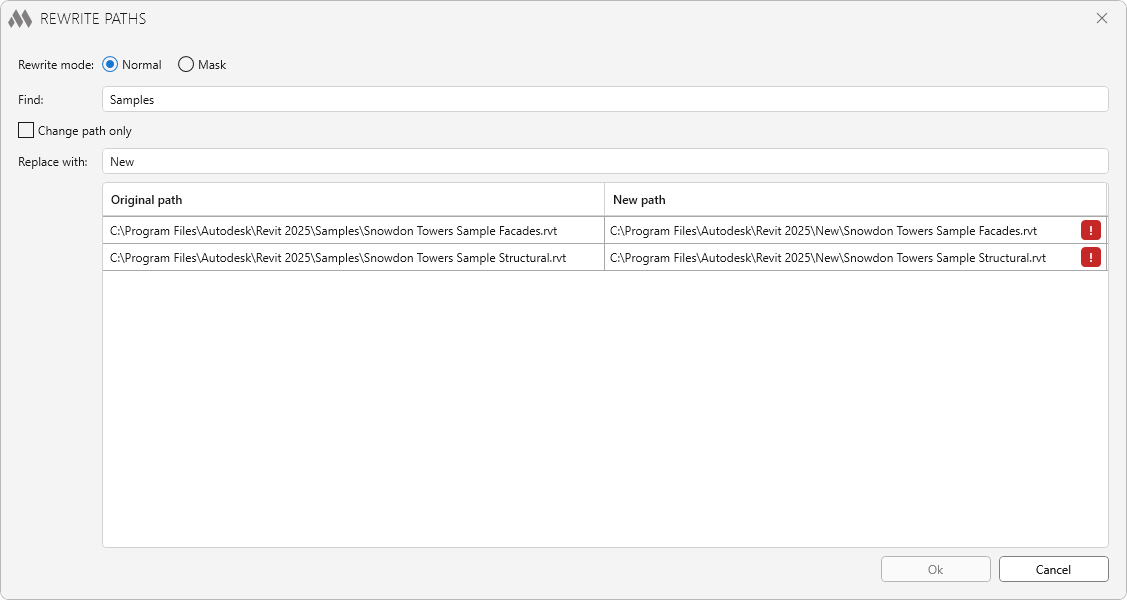
Replacement mode:
-
- Normal – search and replace mode based on exact matches.
- Mask – search and replace mode using wildcard characters to replace parts of text: * – any number of characters, ? – any single character, # – digit. If the mask in the Find field does not contain any wildcard characters, then * in the Replace with field will represent the entire found fragment, to which a prefix and/or suffix can be added. To use wildcard characters in the expression as regular string characters, they must be escaped with the "\" character placed before the escaped character (\*, \?, \#, \\).
Example 1. Moving files to another folder on a different drive:
Find: C:\Projects\*
Replace with: D:\Archive\*
Example 2. Replacing part of the path:
Find: *\Samples\*
Replace with: *\Library\*
Example 3. Replacing the folder and section number in file names:
Find: C:\\Projects\\GPB1\\??_section 1.rvt
Replace with: C:\\Projects\\GPB2\\??_section 2.rvt
Result: AR_section 1 (from folder "1") → AR_section 2 (from folder "GPB2"), KR_section 1 (from folder "GPB1") → KR_section 2 (from folder "GPB2"), PB_section 1 (from folder "GPB1") → PB_section 2 (from folder "GPB2").
Find – the field specifies a pattern for searching the original paths that need to be changed. It can be used to search either the full path or part of it (for example, a folder or file name).
Change path only – when this option is enabled, replacement is applied only to the directory, without changing the file name.
Replace with – the field specifies the new path that will be substituted instead of the found one.
The table shows the result of applying the masks. The table updates automatically and allows you to check the result before applying the changes. If the new path is formed incorrectly (the file is not found at the specified path), the row will be marked with a warning.
Rewrite paths (folder) – allows you to change the path to the selected linked files by specifying a new folder:
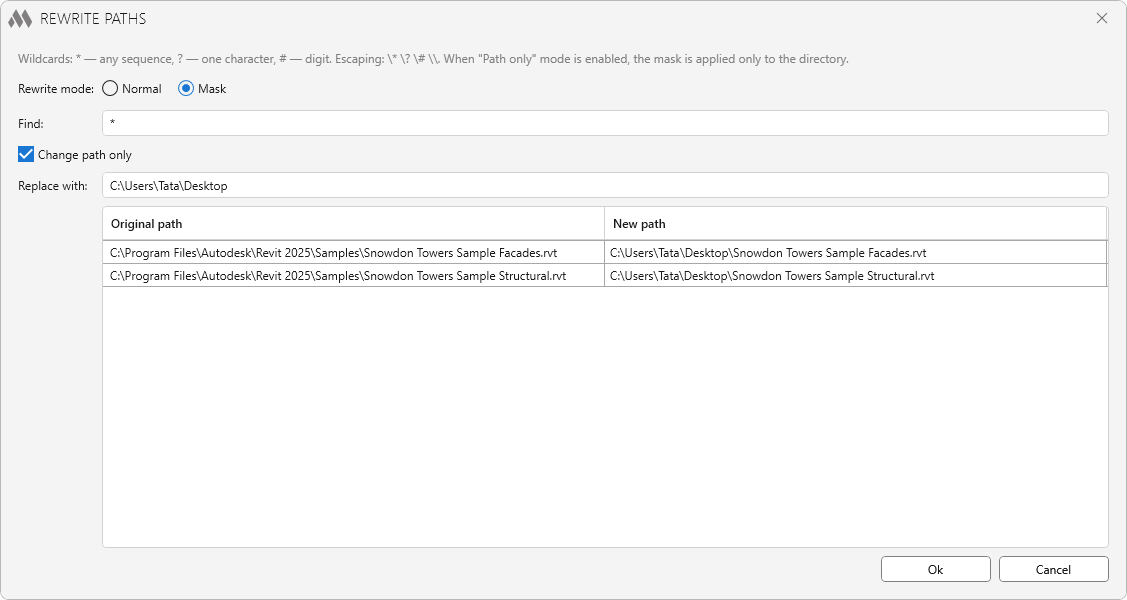
After selecting a new folder, the Rewrite paths window opens, in which the replacement parameters are filled in automatically. As a result, for all selected links, the file path will be replaced with a new one while the file name will remain unchanged.
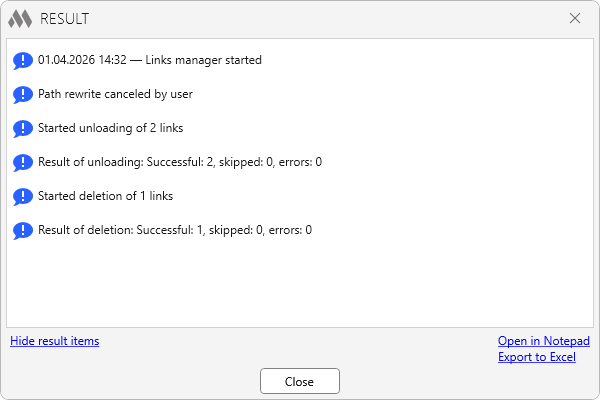
Show log – opens a window containing the plugin activity log for the current session: