


Compact mode
We present to you a new ModPlus interface feature — Compact mode!
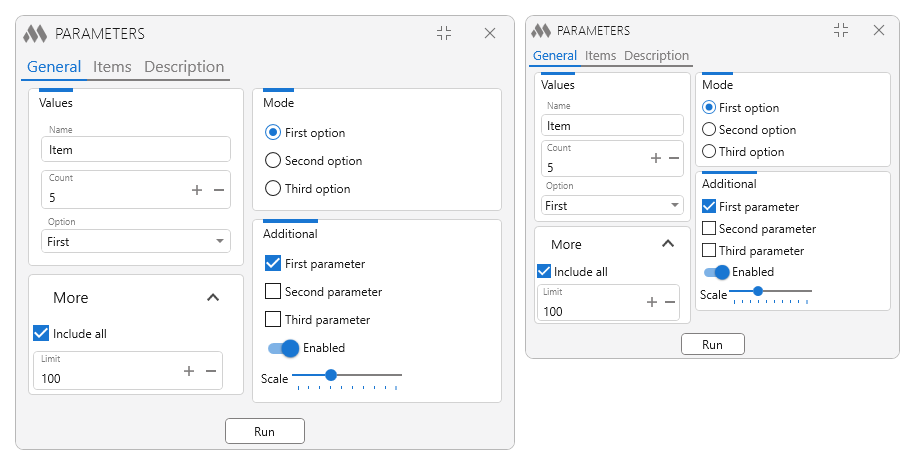
Compact mode makes plugin windows smaller — without removing anything from them. All the fields, lists and buttons stay in place, there is simply less empty space between them. It is enabled in the ModPlus settings, right below the theme selection. An example of the settings in Revit:
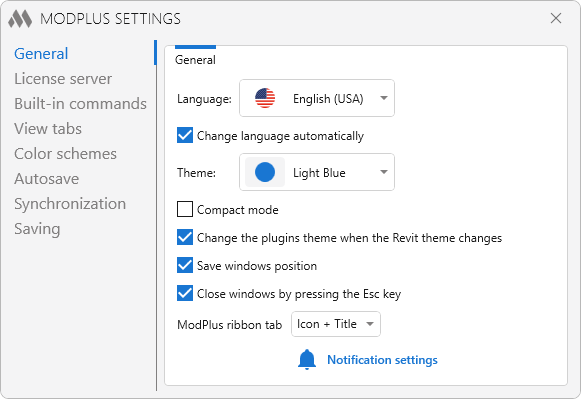
Below we tell you how the compactness is achieved and what nuances there are
Text and icons do not change
This is the main thing worth saying right away. Compact mode reduces neither the size of the main text nor the icons. Smaller text would clash with the size of the text in Revit, AutoCAD, etc. themselves, and reducing the icons leads to their visual degradation – they become murky and blurry.
So we took a different route and reduced everything else:
Spacing
The main source of compactness. The distances between elements and the paddings inside them are halved: where there were 4 pixels, there are now 2.
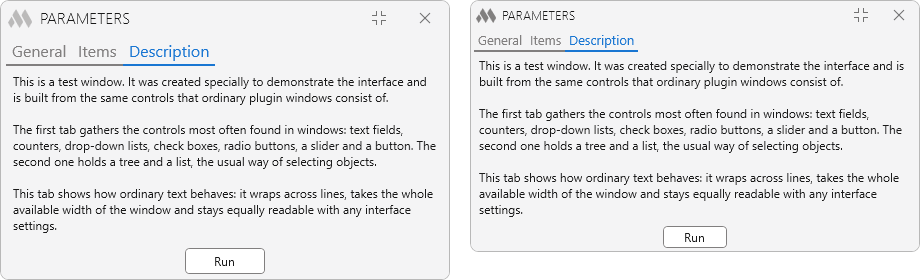
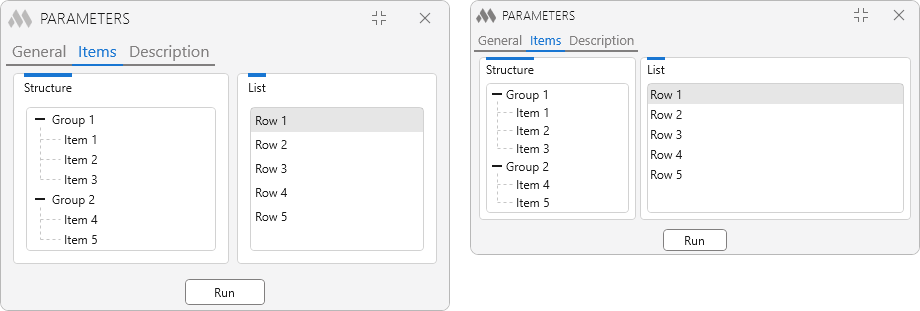
The same applies to rows in lists, trees and tables — they become denser, and more rows fit into the same window.
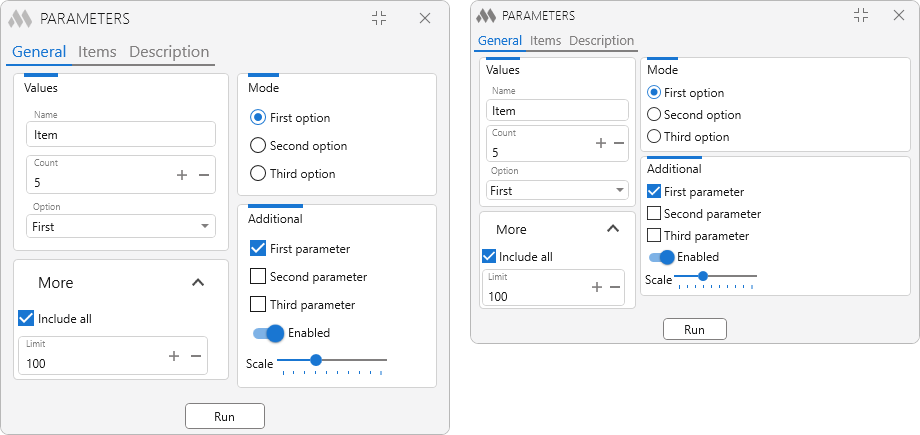
In the previous and the following screenshots we deliberately kept the window width the same in order to show the difference between the modes. But in many plugins the window size is reduced as well when compact mode is enabled.
Sizes of elements, headings and the window title bar
The controls themselves become lower and more compact.
The height of input fields and buttons is reduced: a field becomes 22 pixels instead of 26. The checkbox squares and the radio button circles get smaller — from 14 to 12 pixels. The toggle switch becomes smaller: 28 instead of 34. The slider is squeezed as well — both the track itself and the thumb on it.
Individually these are just a few pixels, but there are dozens of such elements in a window, and they stand one below another — the savings add up over the entire height of the window.
Tab and section headings are the only text that does get smaller: by about a fifth, from 16 to 13. They are larger than the main text anyway, so they remain perfectly readable while freeing up a noticeable amount of space.
The top bar of the window with the title and the buttons becomes lower: 26 pixels instead of 32. The window icon and title get smaller along with it. The close and minimize buttons adjust themselves.
How much smaller in the end
According to our measurements, the window becomes about 20–30 % smaller in width and the same in height. On screen this feels stronger than it sounds: in terms of the area occupied it works out to a third less, and in favourable cases — almost half.
The effect differs from window to window
It all depends on what the window is filled with.
The biggest gains are in windows with tables, lists and trees, as well as windows with a large number of fields, checkboxes and groups: they have many repeating paddings and elements, and every one of them is reduced.
The smallest — windows where text takes up most of the space: descriptions, explanations, long names in lists. The text does not get smaller, which means the space it occupies stays the same. In such a window compact mode will remove the paddings along the edges, but visually almost nothing will change. That is normal and intended.
All ModPlus plugins have been adapted for compact mode, but considering how many plugins there are, we may have done the adaptation not quite well somewhere. If you see a window where something looks wrong after enabling compact mode, write to us in the support chat.
Enjoy your work with ModPlus!