


Revit. Parametrization. New strategies, new functions, element grouping, pre-filters, a palette for quick launching and much more
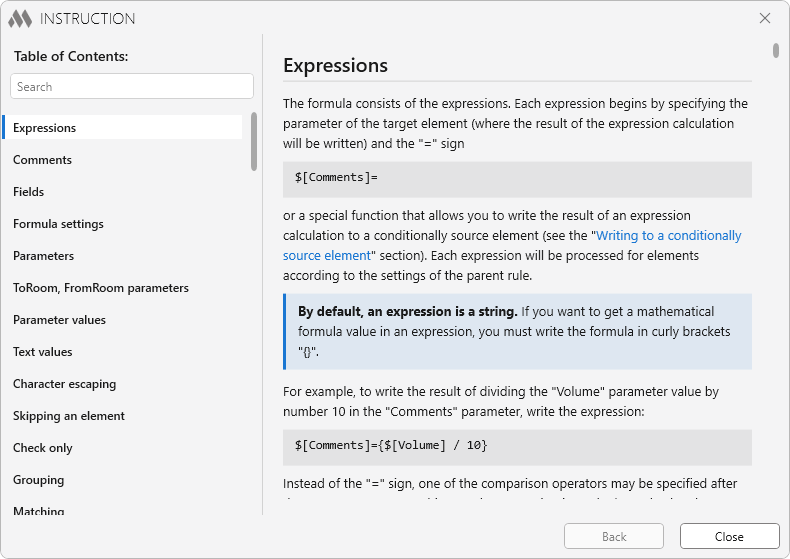
Today we have released the biggest update both in the history of Parametrization and, perhaps, in the history of any ModPlus plugin!
The new version of Parametrization brings you new functions, new strategies, element grouping, the unique ManyToMany strategy, pre-filters, a palette for quick launching, a redesigned instruction, new features of the formula editor and much more. We will tell you about all of this below, and we strongly recommend that you read this article
Instruction
The content and the design of the instruction have been heavily reworked: more information about how the plugin works has been added to the instruction, the chapters are now arranged more logically, and cross-references have been added to the text of the instruction. We showed the design earlier, in the title screenshot. By the way, the instruction can now be launched not only from the formula editor, but also from the main window of the plugin – from the settings panel.
Formulas and the formula editor
New formula highlighting capabilities have been added to the formula editor:
- functions can now be collapsed and expanded. This does not affect the formula
- the body of a function is now marked with background highlighting
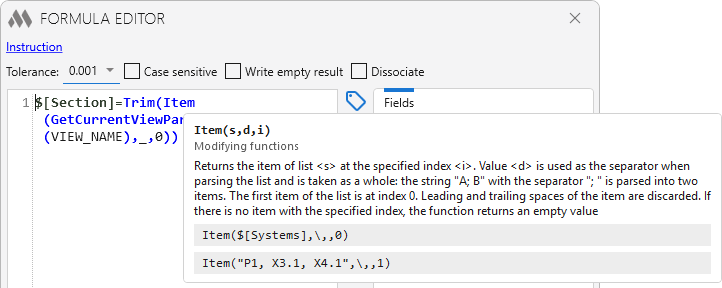
Tooltips for functions have appeared in the formula editor. If you hover the cursor over a function name, its description appears, so you no longer need to look into the instruction to recall what the arguments are for:
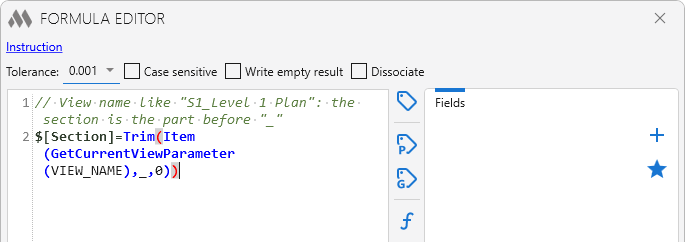
You can now write comments in formulas. They will help you explain a complex expression to yourself or to your colleagues, and also temporarily disable a part of the formula without deleting it:
Function names are now written in CamelCase instead of capital letters: CvIf instead of CVIF, Round instead of ROUND. Long names are noticeably easier to read this way. The case in function names is still ignored, so existing formulas will keep working without changes.
The cell with the formula options has got a new design: the options have become clearer and take up less space:

New formula capabilities
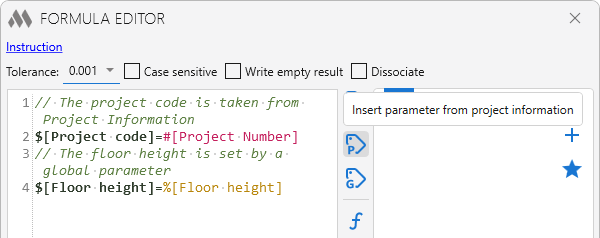
Project information parameters and global parameters. The values of project information parameters and global parameters can now be used in formulas. For example, you can write the project code into elements or use a value set once for the whole project in a calculation. Separate buttons for inserting them have appeared in the formula editor:
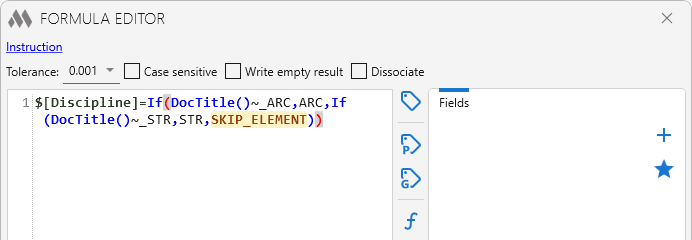
The SKIP_ELEMENT keyword. It lets you exclude an element from processing right from the formula. This is convenient when the skip condition is hard to express with a filter, while in the formula it is written in a single line:
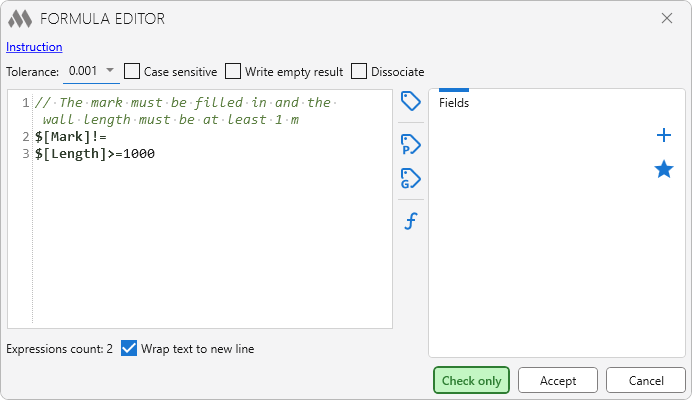
"Check only" expressions. If you put a comparison operator (!=, >, <, >=, <=, ~, !~) after the target parameter instead of =, the expression will work only in the Check mode. In this mode the current value of the parameter is compared with the result of the expression, while in the Execute mode the expression is skipped. This way a single configuration can hold both the filling of parameters and the checking of the model. Such expressions are marked with an icon in the formula cell and in the formula editor:

The new operators "is in" and "is not in". Two new operators have appeared in formulas: =| checks whether a value is in a list, and !=| checks that it is not. The list can be specified as a string with the List function, and can also be taken from a column or a row of the data source with the CcList and CrList functions. Long chains of conditions joined by "or" are no longer needed:
New write-back functions. Min, Max, Avg, First and Last have been added to the Sum and Join functions. Now not only the sum or the list of values of the related elements can be written into the conditional source element, but also the minimum, maximum or average value, as well as the first or the last one.
In addition, a value can now be written into the source element directly, with an expression of the form @[Parameter] = …. For example, @[Number of rooms] = GCount(t) will write into the room the number of spaces matched with it.
New functions
The list of functions has grown noticeably:
- working with the data source (an Excel file): CvOr finds the first row in which at least one of the conditions is met, while CcMin, CcMax, CrMin and CrMax return the minimum and the maximum value from a column or a row of the data source
- working with lists: Item returns a list item by index, FindItem returns the first item containing the value you are looking for, and ItemIndex returns the index of such an item
- working with strings: Trim removes the spaces at the beginning and at the end of a string, RgxMatch checks a value against a regular expression, and RgxReplace performs a replacement by a regular expression
- geometry: TargetBottomZ, TargetTopZ, SourceBottomZ and SourceTopZ return the bottom and top elevations of the target and the source elements
- others: HasValue checks whether a value has been set for a parameter, DocTitle returns the title of the document, and GetCurrentViewParameter returns the value of a parameter of the view on which the processing is performed
You will find a detailed description of each function with examples in the instruction.
New strategies
Nine new strategies have been added:
- InAssembly — processing of elements located in assemblies
- ViewSpecific — processing of elements that exist on a single view only: dimensions, text notes, tags, detail lines and detail regions, as well as the contents of sheets
- StairComponents — processing of stair components: runs, landings, supports and railings. The conditional source element is the stair
- RoomOpenings — processing of the doors and windows that open into a room. The conditional source element is the room
- RoomFinishing — processing of room finishing created by the Room finishing plugin. The conditional source element is the room
- OnLevel — processing of elements by their binding to a level
- LevelViews — processing of the views built on a level: floor plans, ceiling plans, structural plans and area plans
- RebarCouplers — processing of the rebars joined by a rebar coupler. The conditional source element is the coupler
- ManyToMany — we will tell you about it separately below
The RoomBoundaries strategy has been reworked: it now processes not only the vertical room boundaries, but the horizontal ones as well.
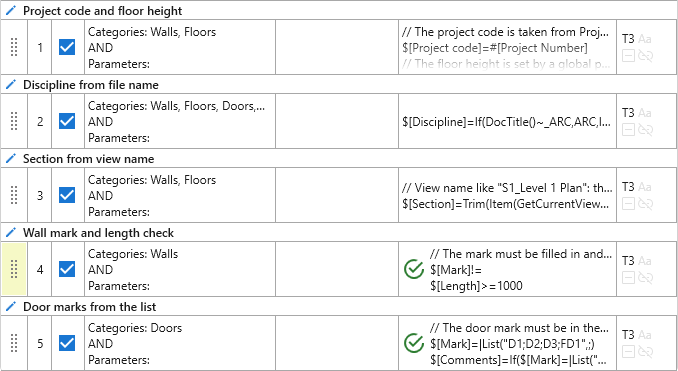
Rules can now be given names. In a strategy with a dozen rules it is immediately clear what each rule is responsible for:
Pre-filters
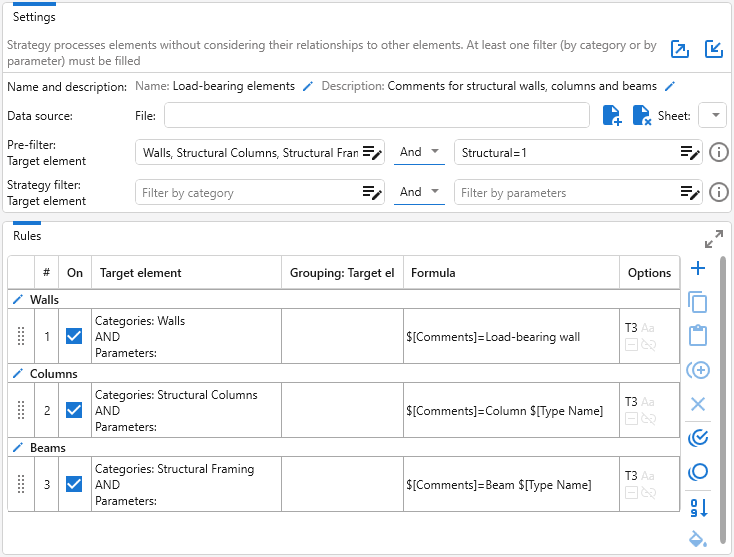
Strategies have got pre-filters. A pre-filter narrows the set of elements for all the rules of the strategy at once. It does not replace the rule filters, but is applied together with them: an element will get into processing only if it passes both the pre-filter and the rule filter.
For example, in the pre-filter you can specify the "Walls", "Structural Columns" and "Structural Framing" categories, as well as the "Structural" parameter. Then all the rules of the strategy will work only with the structural elements of these categories, and will select the elements among them by their own filters. Previously the same condition would have had to be repeated in every rule.
If the categories of a rule do not intersect with the categories of the pre-filter, the plugin will warn that such a rule will not process a single element.
Element grouping and aggregate functions
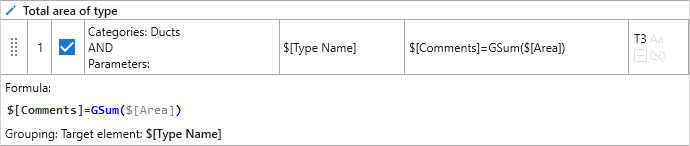
This is one of the biggest new features of the version. Grouping of the target elements can now be set for a rule: elements with the same value, for example of the same type or with the same mark, are combined into a group. Aggregate functions with the G prefix have been added for working with groups: GSum, GMin, GMax, GAvg, GCount, GJoin, GIndex. The Ranges function has also been added, which collapses a list of numbers into ranges: "1-3, 5-7, 10".
With grouping you can, for example, write into each duct the total area of all the ducts of the same type, number the elements inside a group, or collect into one string the numbers of all the rooms in which elements with the same mark occur. Groups can be sorted, and values can be compared ignoring the case:
The ManyToMany strategy and matching
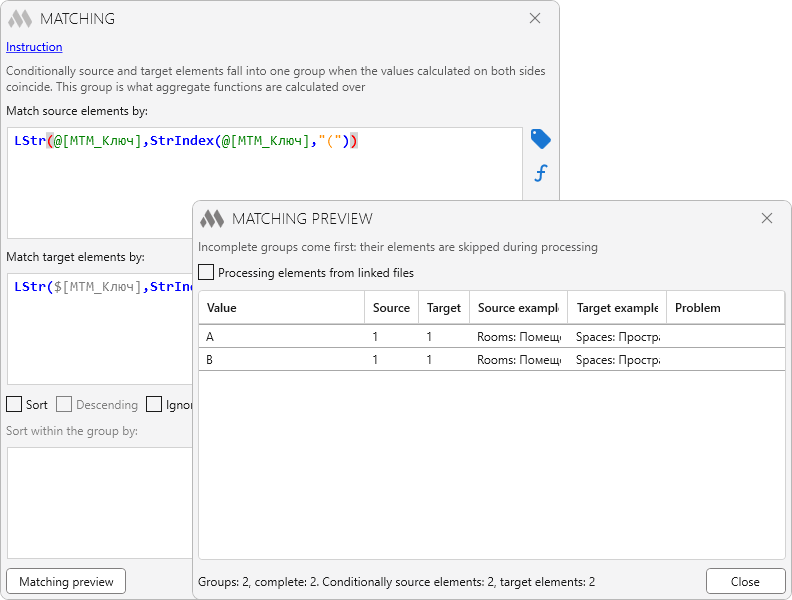
All the other strategies build a pair of elements by their relation in the model: an element is located in a room, is inserted into a wall, belongs to a system, etc. ManyToMany works differently: it links two independent sets of elements by coinciding values. The classic example is rooms from the architectural model and spaces from the MEP model. The rooms have the "Apartment type" parameter, the spaces have "Room type". You specify the matching @[Apartment type] ↔ $[Room type], and the plugin finds the pairs itself.
To check the setup before running, use the matching preview. It shows which values have coincided, how many source and target elements got into each group and for which elements no pair was found. Incomplete groups are listed first, so the problems are visible right away.
Palette
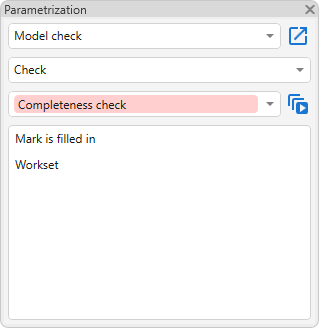
A palette for quick launching of the strategies and rules of the current configuration has been added. If you regularly run the same strategy or a single rule, you no longer need to open the main window of the plugin: they can be launched right from the palette:
Configurations
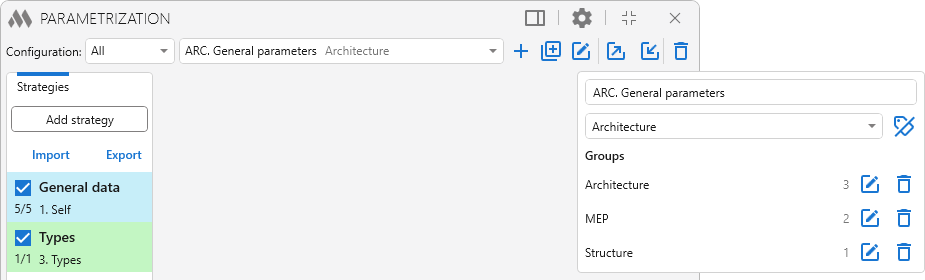
Configurations can now be combined into groups. If you have dozens of configurations for different disciplines and projects, finding the one you need becomes much easier:
The state of the "Selected" checkboxes of the strategies and rules is now saved into a separate file. Therefore the choice made before running no longer changes the configuration itself. This is especially convenient if one configuration is used by several people with the Organization settings.
Synchronization before running
The Ask to synchronize with the central model before running option has appeared in the plugin settings. If it is enabled and the document is workshared, the plugin will offer to synchronize with the central model before the processing. The synchronization parameters repeat the standard Revit dialog: compacting, releasing elements and worksets, saving the local file. The request works when launching from the palette as well.
The results window and step-by-step calculation
- If a result has fewer than four nested objects, it is expanded automatically
- For strategies the number of rules that contain processed expressions is now shown
- In the step-by-step calculation the highlighting of commas, which was more of a hindrance than a help, has been removed
Other improvements
- Processing of the "Circuit Number" parameter has been added
- If an element has several parameters with the same name, the plugin will now report an error instead of taking the first parameter it comes across. Previously, in such a situation the wrong parameter could be read or written unnoticed
- Various errors found in the previous version have been fixed
And even with such a big update we still have ideas for the next updates! So do not forget to write your suggestions in our support chat!
Enjoy your work with ModPlus!