


Revit. Improved elements filter, multi-row tabs with document headers and other new features
Today we have released an update of the working libraries for Revit version 38.0.0.0 and in this article we want to tell you about the new features and improvements of this update
Category selection dialog
In the category selection dialog (most often found in the elements filter) grouping by category type has been added:
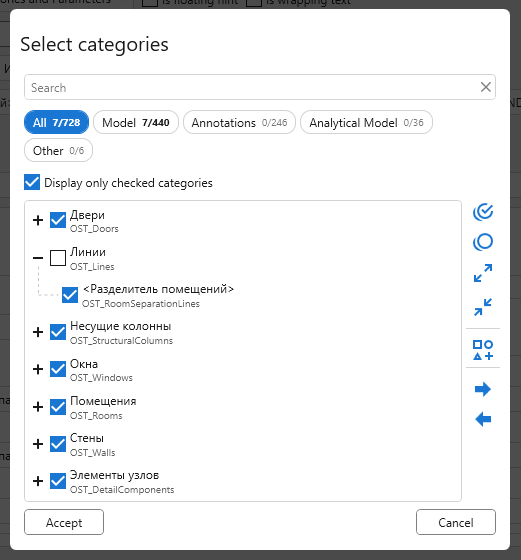
And this is not just a visual grouping, but a functional improvement! The control options (the buttons on the right) work within the selected group. For example, now you can select the annotation categories and check all categories from the current view.
Parameter conditions
Let's continue about the new features of the elements filter, namely about the parameter conditions, where we have several innovations at once:
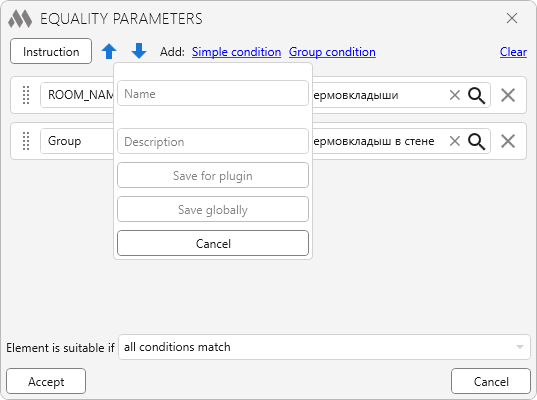
Presets added. Now, in the parameter conditions window, you can save presets and load previously saved ones:
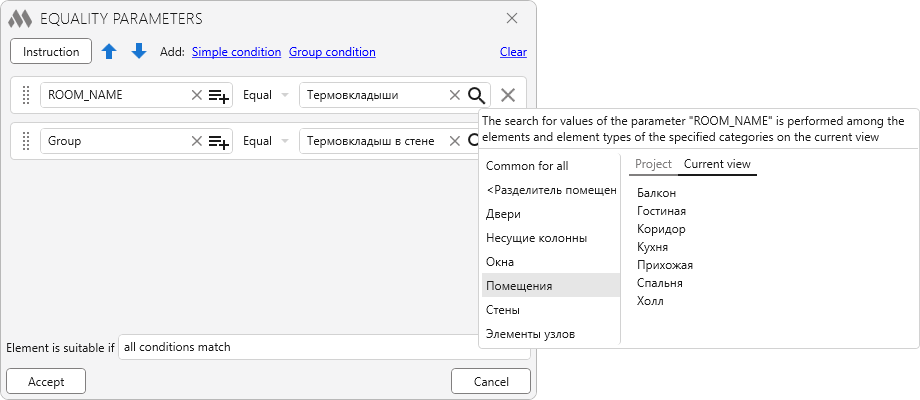
Search in the view. Now, in the parameter values search dialog, the search is performed both in the whole project and in the current view:
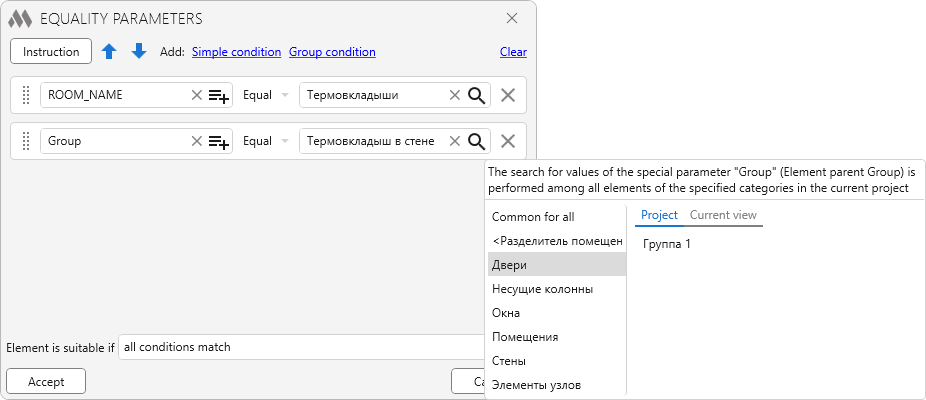
Search by special parameters. The parameter values search dialog now takes into account some special parameters of the elements filter:
Built-in commands
For all built-in commands that select elements, the ability to add elements to the current selection has been added. To do this, simply hold down the Ctrl key when running the built-in command. For example, if you select a slab and run the "Select Rebars" command while holding Ctrl, then both the slab and the rebars of this slab will be selected.
A new built-in command "Select annotations" has been added, which enables you to select the annotations associated with the selected elements.
Synchronization and saving notifications
The synchronization and saving notification services have got the "Vivid colors" option. For those who want the colors to really catch the eye:

Also, the color combinatorics of the two services has been improved, so that the title background color and the title text color match each other better
Multiple rows of tabs
The settings of the view tabs have got the "Document headers" option, which depends on the "Each document on a new row" option. If you enable "Multiple rows", the "Each document on a new row" option and the "Document headers" option, you will get the following result:
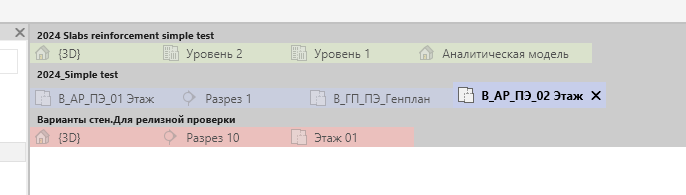
Also, it is no longer necessary to enable the "Sort by tooltip" option in order to be able to enable the "Each document on a new row" option. And with "Multiple rows" enabled, the tabs can now be dragged if the "Sort by tooltip" option is not enabled.
If you have any ideas and suggestions, write to us in the support chat. Together we make ModPlus better!
Enjoy working with ModPlus!